
Windows dictation for focused work
Speak naturally.
Write professionally.
WASPrFlow turns what you say into clear writing and places it at your cursor. No dictation window. No copy and paste. Just keep working.
Windows 10 and 11 · 64-bit · No account required
hey mark quick update i think we should hold off until friday because the vendor quote still seems high can you send me the revised one
Hi Mark, quick update: I think we should hold off until Friday because the vendor quote still seems high. Could you send me the revised version?
Inserted at your cursor
Works at the cursor
One hotkey. Every app.
Place your cursor where you want to write, start dictation, and release to insert. WASPrFlow works in the Windows tools you already use: email, documents, browsers, chat, IDEs, and more.
Watch the insert-anywhere walkthrough
Language in, language out
Speak in one language. Write in another.
Select one of 64 input languages or use Auto-detect, then choose any of 64 output languages. Dictate, translate, and write without changing your workflow.
Explore language support4,160 input/output combinations
Auto-detect is available for input.Control without friction
Set it up once. Make it yours.
Use Momentary mode for push-to-talk or Toggle mode for longer thoughts. Choose how writing is cleaned up, keep names and terminology in your dictionary, and use Privacy Mode whenever you want transcript-first dictation.
See hotkeys and controls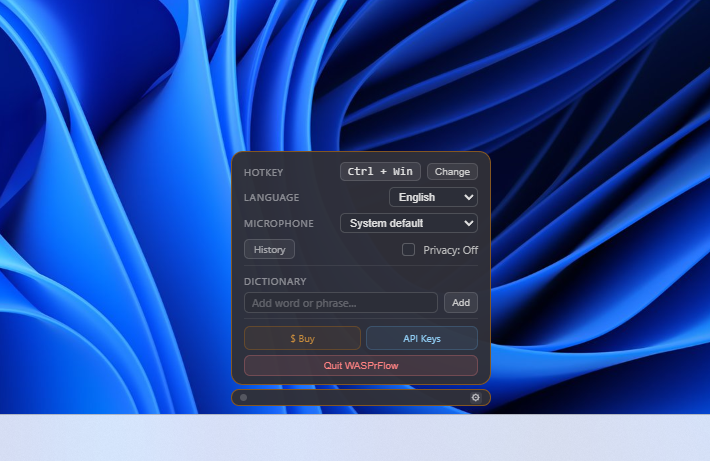
Download WASPrFlow
Ready when your cursor is.
Windows 10 and 11, 64-bit. Use the Setup EXE for most installs or the MSI for managed deployments.
Good questions
Before you download.
Does it work across Windows apps?
WASPrFlow inserts text at the cursor in most Windows apps with standard text fields, including browsers, Office, email clients, chat apps, and IDEs.
Do I need an account or provider API keys?
No. Download and dictate with the managed WASPrFlow service. No provider account or API-key setup is required.
What happens to my data?
Audio is streamed for transcription and is not written to disk. Local history, dictionary, settings, and licence data stay on your device. Read the privacy page for details.
Which installer should I choose?
Use the Setup EXE for most installs. Use the MSI for managed or IT-administered Windows environments.